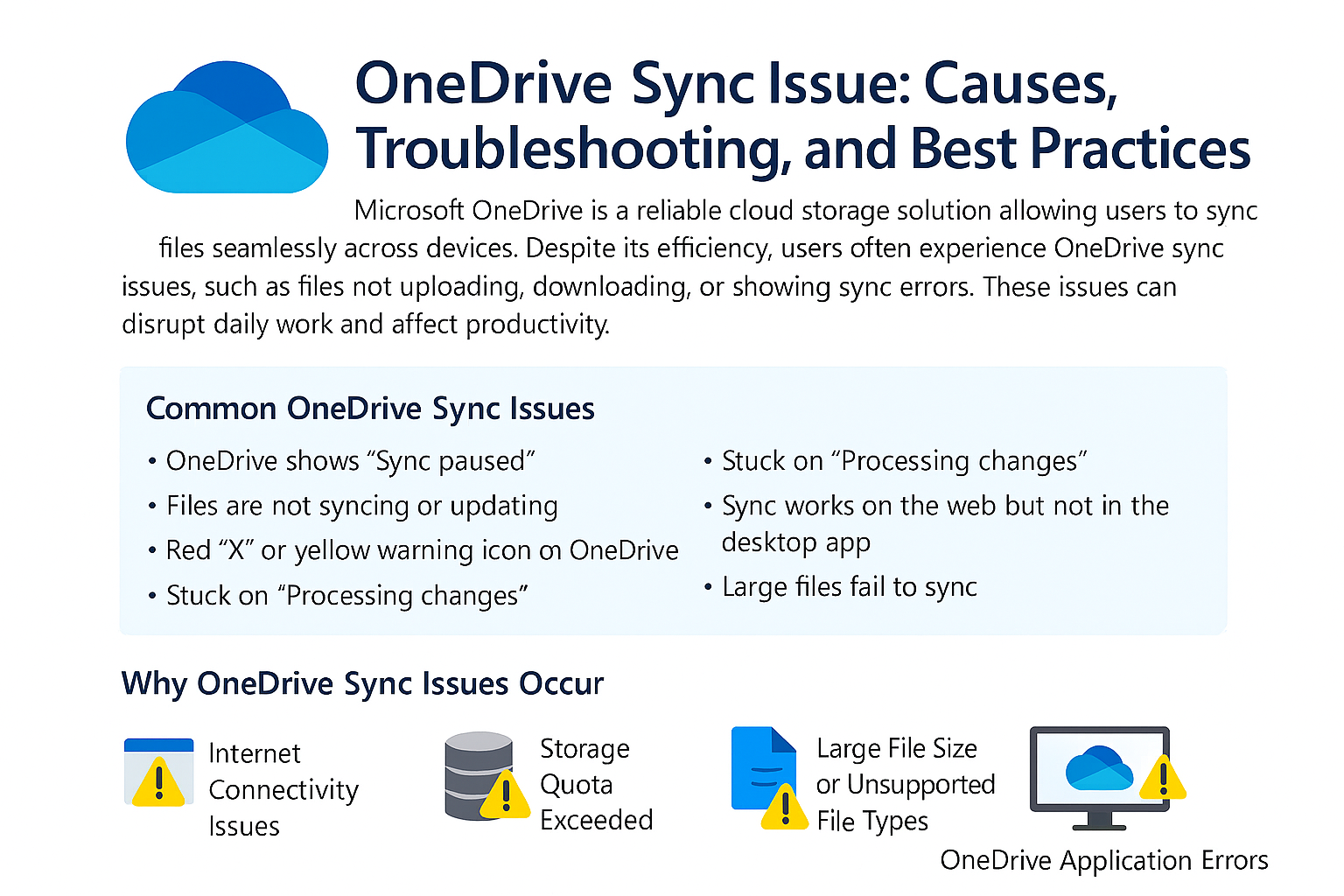
Users often experience OneDrive sync issues, such as files not uploading, downloading, or showing sync errors. These issues can disrupt daily work and affect productivity
Common OneDrive Sync Issues
Users may encounter the following problems while using OneDrive:
- OneDrive shows “Sync paused”
- Files are not syncing or updating
- Red “X” or yellow warning icon on OneDrive
- Stuck on “Processing changes”
- Sync works on the web but not on the desktop app
- Large files fail to sync
Why OneDrive Sync Issues Occur
OneDrive sync problems can be caused by several factors:
1. Internet Connectivity Issues
An unstable or slow internet connection can interrupt sync operations.
2. Storage Quota Exceeded
When OneDrive storage is full, syncing stops automatically.
3. Large File Size or Unsupported File Types
OneDrive has file size and naming limitations, which may prevent syncing.
4. OneDrive Application Errors
Outdated or corrupted OneDrive applications can cause sync failures.
5. Account or Sign‑In Issues
Incorrect credentials or signed‑out accounts stop syncing.
How to Fix OneDrive Sync Issues
Solution 1: Check Internet Connection
Ensure you have a stable and active internet connection. Try switching networks if needed.
✅ Solution 2: Resume OneDrive Sync
- Click the OneDrive cloud icon in the system tray
- Check if sync is paused
- Click Resume syncing
✅ Solution 3: Restart OneDrive Application
- Right‑click the OneDrive icon
- Select Close OneDrive
- Reopen OneDrive from the Start menu
✅ Solution 4: Check File Name and Size Limits
Avoid:
- File names with special characters (
\ / : * ? " < > |) - Files larger than 250 GB
- Long file paths
✅ Solution 5: Verify Storage Space
- Log in to OneDrive Web
- Check available storage
- Delete unnecessary files or upgrade storage if needed
✅ Solution 6: Update OneDrive Application
- Right‑click the OneDrive icon
- Go to Settings → About
- Ensure you’re using the latest version
Keeping OneDrive updated resolves many sync-related bugs.
Solution 7: Reset OneDrive
- Press Windows + R
- Paste the command below and press Enter:
- %localappdata%\Microsoft\OneDrive\onedrive.exe /reset
Restart OneDrive manually if it doesn’t start automatically