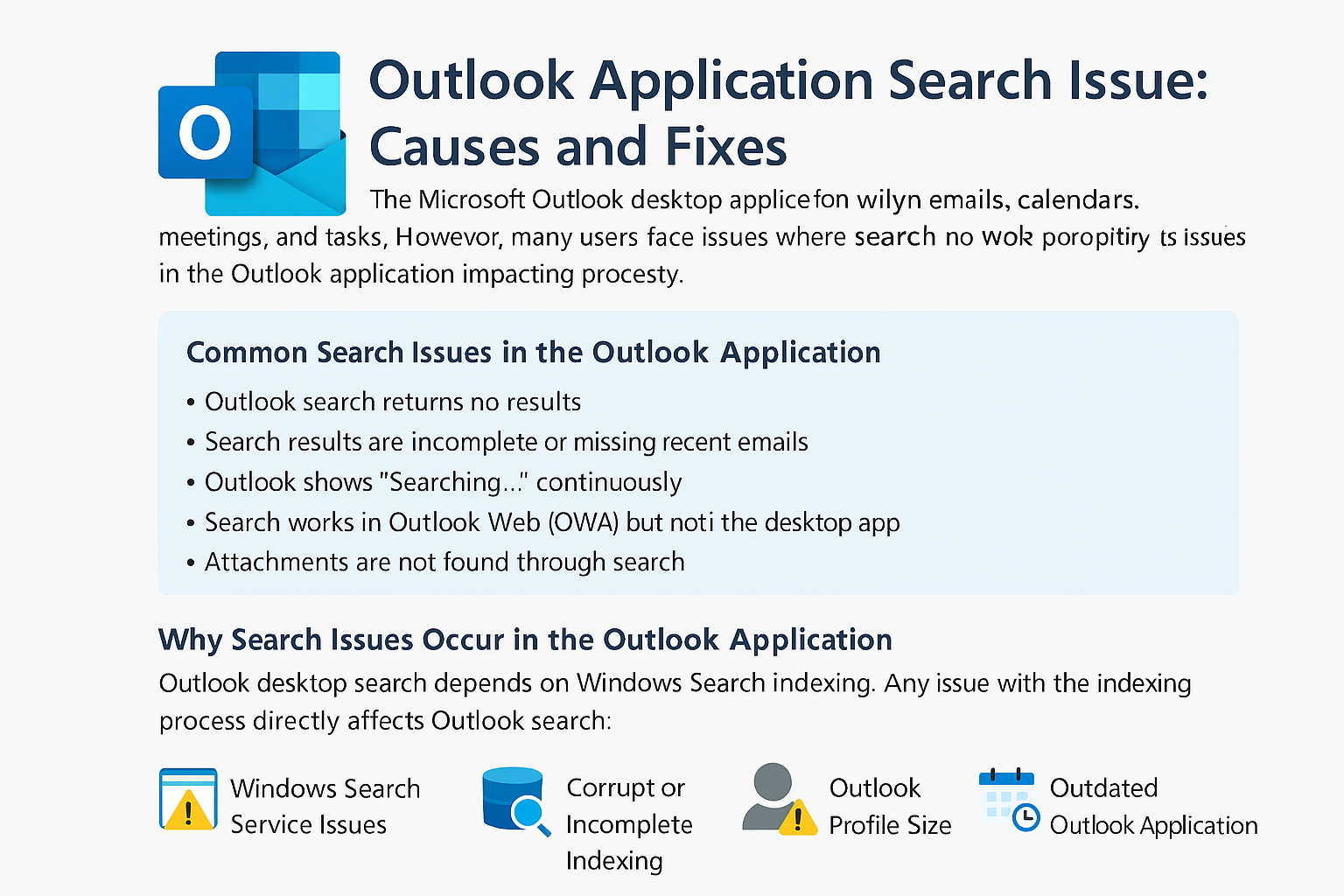
This blog explains why search issues occur in the Outlook application and provides practical solutions to resolve them.
Common Search Issues in the Outlook Application
Users may experience the following problems:
- Outlook search returns no results
- Search results are incomplete or missing recent emails
- Outlook shows “Searching…” continuously
- Search works in Outlook Web (OWA) but not in the desktop app
- Attachments are not found through search
Why Search Issues Occur in the Outlook Application
Outlook desktop search depends on Windows Search indexing. Any issue with the indexing process directly affects Outlook search. Common causes include:
1. Windows Search Service Issues
If the Windows Search service is stopped or not running correctly, Outlook search will fail.
2. Corrupt or Incomplete Indexing
When Outlook data files (.OST/.PST) are not indexed fully, search results may be missing.
3. Outlook Profile Corruption
A damaged Outlook profile can interrupt the search and indexing process.
4. Large Mailbox Size
Large mailboxes slow down indexing and delay search results.
5. Outdated Outlook Application
Older Outlook versions may contain search-related bugs.
How to Fix Search Issues in Outlook Application
✅ Method 1: Restart Windows Search Service
- Press Windows + R
- Type
services.mscand press Enter - Locate Windows Search
- Restart the service and set Startup type to Automatic
✅ Method 2: Rebuild Outlook Search Index
- Open Control Panel
- Select Indexing Options
- Click Advanced
- Choose Rebuild
Note: Rebuilding may take time depending on mailbox size.
✅ Method 3: Verify Outlook Is Indexed
- Open Indexing Options
- Click Modify
- Ensure Microsoft Outlook is selected
- Restart the Outlook application
✅ Method 4: Repair Outlook Data Files
- Close Outlook
- Run SCANPST.EXE (Inbox Repair Tool)
- Scan and repair PST/OST files
- Reopen Outlook
✅ Method 5: Create a New Outlook Profile
- Go to Control Panel → Mail
- Click Show Profiles
- Add a new profile
- Set it as default and reconfigure Outlook
✅ Method 6: Update the Outlook Application
- Open Outlook
- Go to File → Office Account
- Click Update Options → Update Now
Regular updates fix known search and performance issues.
Best Practices to Avoid Outlook Search Issues
- Archive old mail regularly
- Keep mailbox size under recommended limits
- Close Outlook properly after use
- Avoid force shutdowns
- Keep Windows and Outlook updated